using System.Text.RegularExpressions;
Regex.Replace(字串,@"<(.| \ ñ )*?>", string.Empty)
2010年8月11日 星期三
C# 如何從字符串中刪除 HTML標籤
 標籤:
ASP.NET C#
標籤:
ASP.NET C#
C# Left、Right' Mid 都可以用
        public string  StrLeft(string s, int length)
        {
            return s.Substring(0, length);
        }

        public string StrRigth(string s, int length)
        {
            return s.Substring(s.Length - length);
        }

        public string StrMid(string s, int start, int length)
        {
            return s.Substring(start, length);
        }
str = "123456789"
Left = str.substring(0,2) = "12"
Rigth = str.substring(str.length -2) = "89"
Mid = strsubstring(2,2) = "34"
using Microsoft.VisualBasic;
Strings.Right("aaaaa",2);
標籤:
ASP.NET C#
2010年8月10日 星期二
如何使用CSS製作「圖說文繞圖」 (範例實作)
很多朋友應該都知道如何使用標準的 html 達成簡易的文繞圖效果,作法很簡單,只需要在 img 標籤中加入以下參數即可:align="left" 或是 align="right" ;另外若是文字與圖片緊貼著不好看,你也可以使用 vspace 和 hspace 使圖片與文字之間預留空間。
以下為完整用法:
不過眼尖的朋友應該可以發現,使用 hspace 和 vspace 會使圖片的上下及左右皆出現間隔,這樣一來便會讓圖片於相對的內文無法對齊(如上圖所示);且無法順利的加入圖說(caption)。
以下將介紹如何使用簡單的CSS來製作方便實用的文繞圖效果,且可以漂亮的對齊內文。

CSS語法
以下為完整用法:
<img src="path.to.image" align="right" hspace="8px" vspace="5px">
不過眼尖的朋友應該可以發現,使用 hspace 和 vspace 會使圖片的上下及左右皆出現間隔,這樣一來便會讓圖片於相對的內文無法對齊(如上圖所示);且無法順利的加入圖說(caption)。
以下將介紹如何使用簡單的CSS來製作方便實用的文繞圖效果,且可以漂亮的對齊內文。

CSS語法
<style type="text/css">左邊文繞圖
.img_left
{
float:left;
}
.img_right
{
float:right;
}
</style>
<img class="img_left" src="http://f.blog.xuite.net/f7/b7/10055976/blog_6267/txt/126866/126866_8.gif" alt="" />右邊文繞圖
<img class="img_right" src="http://f.blog.xuite.net/f7/b7/10055976/blog_6267/txt/126866/126866_8.gif" alt="" />範例:
/* --- 文繞圖start -------------- */
div.image-left {
float: left;
margin: 0 8px 8px 0;
}

div.image-left img {
border: 1px solid #ccc;
padding: 4px;
}

div.image-left p {
color: #666;
font-family: 'Lucida Grande', Lucida Sans Unicode;
font-size: 9px ;
margin: 3px 0 0;
text-align: center ;
}
<div class="image-left">
<img alt="alter text" src="path.to.image" />
<p>caption caption caption</p>
</div>
標籤:
CSS
Exchange 2007 安裝後發信設定筆記 (Socket Error # 10060)
因要用來寄發EDM,又無註冊網域,僅供內部發信使用時,請注意以下設定
當發信時出現以下錯誤
Winsock Error 10060 連線超時
Message from: to: Connect error in directly sending! Info : Socket Error # 10060
解決方法 - 原文
Analyse: You are on a an ISP (such as Earthlink or Mindspring) that blocks their users using any SMTP server other than their own.
Solutions: To set up Earthlink, Mindspring, or your ISP's SMTP servers for your outgoing email you must click on your account settings in the email client you are using (Outlook Express, Eudora, Netscape etc.)
In the SMTP (outgoing mail server) field you will enter smtp.earthlink.net (or whatever your dial up or direct access ISP's SMTP server is) as your SMTP server. You must then enter your Earthlink (or your ISP's) username and password for that mail server.
In Outlook Express it is at the bottom of that same tab. You must uncheck 'My server requires authentication' and click on 'settings' to enter your Earthlink (or your ISP's) username and password.
Your email will still be from your own domain name, the only difference is in the way it is routed throughout the Internet. Instead of being sent through our servers it is processed through Earthlink (or your ISP's) servers. This allows Earthlink (or your ISP) to monitor its users.
翻譯後
分析:你是在一個 ISP(如Earthlink或Mindspring),阻止他們的用戶使用其他任何SMTP服務器比他們自己。
解決方案:建立Earthlink的,Mindspring,或ISP的SMTP服務器為您的傳出電子郵件,您必須按一下您的帳戶設置中的電子郵件客戶端,您正在使用(Outlook Express中,Eudora和Netscape等)
在SMTP(發送郵件服務器)字段中,您將進入 smtp.earthlink.net(或者無論您的撥號或直接訪問 ISP的SMTP服務器)作為您的SMTP服務器。然後,您必須輸入您的Earthlink公司(或您的ISP)的用戶名和密碼的郵件服務器。
在Outlook Express是在底部的相同標籤。您必須取消選中'我的服務器要求身份驗證',點擊'設置'輸入您的Earthlink公司(或您的ISP)的用戶名和密碼。
您的郵件仍然會從你自己的域名,唯一的區別是它的方式傳送至整個互聯網。而是通過我們的服務器發送它是通過處理 Earthlink公司(或您的ISP)的服務器。這使得EarthLink公司(或您的ISP)來監測其用戶。
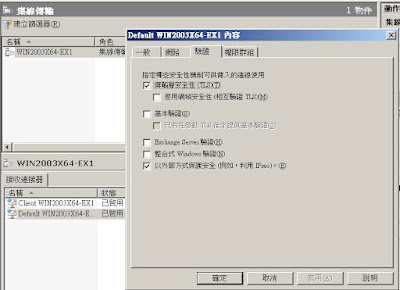
假如看不懂他的說明,那就自己比對下列畫面擷圖的相關設定,自己在思考一下就知道問題出在哪摟,但是若伺服器有對外(即是有實體的網域)時,建議不要如此設定,因為這樣很容易被當作跳板,被駭客或不知名的人透過你的伺服器瘋狂寄發垃圾郵件(因為不需要認證就可以發信),不久的將來你的ISP就會將你封鎖了
在「伺服器組態」--「集線傳輸」--「接收連接器」
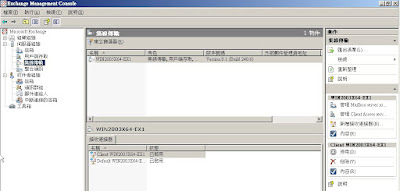
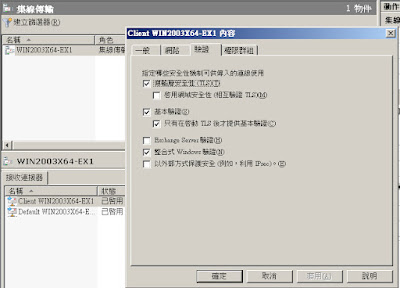
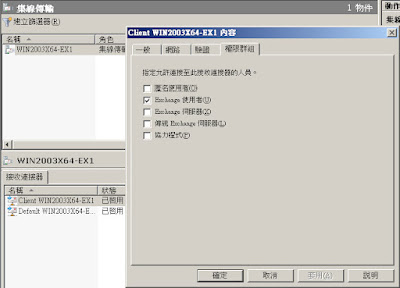
點選「Client xxxxxxxxxxxxxx」--調整「驗證」及「權限群組」中的安全性設定
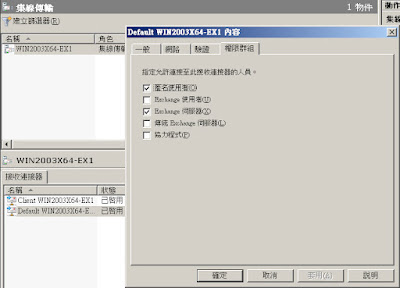
點選「Default xxxxxxxxxxxxxx」--調整「驗證」及「權限群組」中的安全性設定
當發信時出現以下錯誤
Winsock Error 10060 連線超時
Message from:
解決方法 - 原文
Analyse: You are on a an ISP (such as Earthlink or Mindspring) that blocks their users using any SMTP server other than their own.
Solutions: To set up Earthlink, Mindspring, or your ISP's SMTP servers for your outgoing email you must click on your account settings in the email client you are using (Outlook Express, Eudora, Netscape etc.)
In the SMTP (outgoing mail server) field you will enter smtp.earthlink.net (or whatever your dial up or direct access ISP's SMTP server is) as your SMTP server. You must then enter your Earthlink (or your ISP's) username and password for that mail server.
In Outlook Express it is at the bottom of that same tab. You must uncheck 'My server requires authentication' and click on 'settings' to enter your Earthlink (or your ISP's) username and password.
Your email will still be from your own domain name, the only difference is in the way it is routed throughout the Internet. Instead of being sent through our servers it is processed through Earthlink (or your ISP's) servers. This allows Earthlink (or your ISP) to monitor its users.
翻譯後
分析:你是在一個 ISP(如Earthlink或Mindspring),阻止他們的用戶使用其他任何SMTP服務器比他們自己。
解決方案:建立Earthlink的,Mindspring,或ISP的SMTP服務器為您的傳出電子郵件,您必須按一下您的帳戶設置中的電子郵件客戶端,您正在使用(Outlook Express中,Eudora和Netscape等)
在SMTP(發送郵件服務器)字段中,您將進入 smtp.earthlink.net(或者無論您的撥號或直接訪問 ISP的SMTP服務器)作為您的SMTP服務器。然後,您必須輸入您的Earthlink公司(或您的ISP)的用戶名和密碼的郵件服務器。
在Outlook Express是在底部的相同標籤。您必須取消選中'我的服務器要求身份驗證',點擊'設置'輸入您的Earthlink公司(或您的ISP)的用戶名和密碼。
您的郵件仍然會從你自己的域名,唯一的區別是它的方式傳送至整個互聯網。而是通過我們的服務器發送它是通過處理 Earthlink公司(或您的ISP)的服務器。這使得EarthLink公司(或您的ISP)來監測其用戶。
假如看不懂他的說明,那就自己比對下列畫面擷圖的相關設定,自己在思考一下就知道問題出在哪摟,但是若伺服器有對外(即是有實體的網域)時,建議不要如此設定,因為這樣很容易被當作跳板,被駭客或不知名的人透過你的伺服器瘋狂寄發垃圾郵件(因為不需要認證就可以發信),不久的將來你的ISP就會將你封鎖了
在「伺服器組態」--「集線傳輸」--「接收連接器」

點選「Client xxxxxxxxxxxxxx」--調整「驗證」及「權限群組」中的安全性設定


點選「Default xxxxxxxxxxxxxx」--調整「驗證」及「權限群組」中的安全性設定

 標籤:
網路管理
標籤:
網路管理
2010年8月5日 星期四
Microsoft Visual SourceSafe 2005 (VSS2005) 操作手冊 - 各版本的檔案下載
步驟一:若要下載各版本檔案資訊,可點選您要下載之版本檔案,點選「Get」

步驟二:設定要儲存的位置後,按「OK」


步驟二:設定要儲存的位置後,按「OK」

Microsoft Visual SourceSafe 2005 (VSS2005) 操作手冊 - 版本異動紀錄查詢
步驟一:如上篇,在每個版本的檔案上,選擇你要比對的檔案版本

步驟二:在「Format」的部分,選擇「SourceSafe」,點選產生「Report」

步驟三:點選「Preview」

步驟四:即會出現被異動的行數,並顯示備異動的內容及方式


步驟二:在「Format」的部分,選擇「SourceSafe」,點選產生「Report」

步驟三:點選「Preview」

步驟四:即會出現被異動的行數,並顯示備異動的內容及方式

Microsoft Visual SourceSafe 2005 (VSS2005) 操作手冊 - 歷史版本查詢
步驟一:Visual SourceSafe 2005 (VSS2005) 登入畫面

步驟二:您可以在專案上,看到哪些檔案被「簽出已編輯」

步驟三:假設你要檢視檔案修改的版本紀錄,你可以在要檢視的檔案上按滑鼠右鍵,選擇「show History」

步驟四:然後點選「OK」

步驟五:就可以看到每一個版本及修改的時間、修改的人


步驟二:您可以在專案上,看到哪些檔案被「簽出已編輯」

步驟三:假設你要檢視檔案修改的版本紀錄,你可以在要檢視的檔案上按滑鼠右鍵,選擇「show History」

步驟四:然後點選「OK」

步驟五:就可以看到每一個版本及修改的時間、修改的人

訂閱:
文章 (Atom)